


What are the steps for installation?
- Right-Click the MBSDaylightForAutocadSetup.exe file and Select Run as administrator. This ensures future software updates can be obtained without admin privileges.
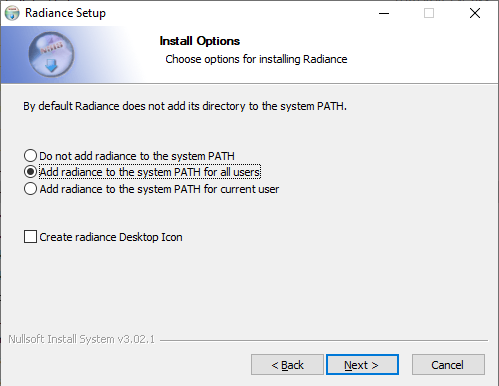
- It installs .Net framework and Radiance dependencies along with the MBS Daylight for Autocad DLL and settings files.
- Remember to Select Add radiance to the system PATH for all users.
What are the steps for updating the software?
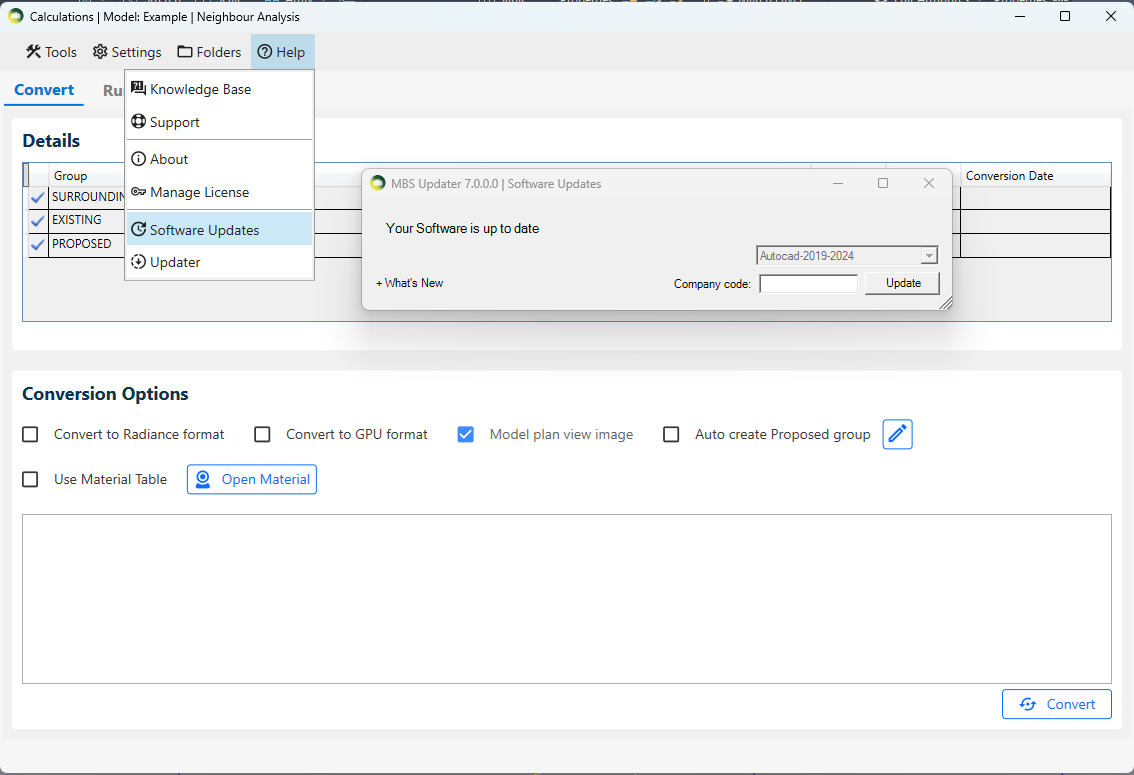
- Software Update dialog will automatically open on the first run after the installation.
- For future updates, follow the below steps
- Open the MBSCalculation dialog > Help > Software Updates > Update
- Autocad and any MBS Calculation service consoles must be restarted after the update.
- What’s New expander can be clicked to check the list of the latest changes.
Why does the MBS toolbar not appear after installation?
- In some cases, it may remain hidden after installation.
- Go to Autocad Menu bar > Tools > Toolbars > MBS Daylight For Autocad
- Then Tick Both MBS Daylight For Autocad and MBS Daylight For Autocad Layers to enable it.