

About Material Dialogue
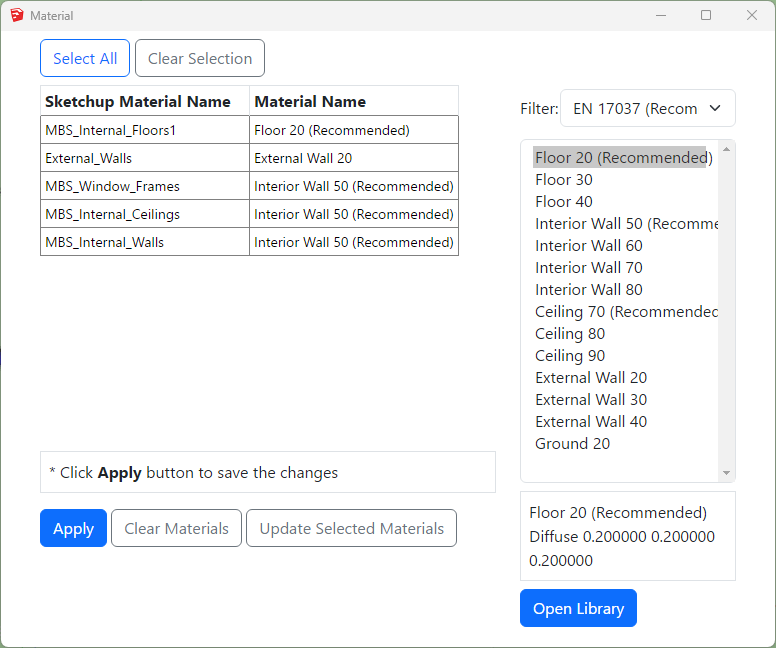
Material Dialogue can be opened by clicking on the  icon on the tool bar.
The material table is empty for a new project. The list is populated with the materials based on the Sketchup Material value when the model is converted for the first time. It an then be modified WITHOUT a need to re-convert the model. Therefore this gives more flexibility on experimenting different materials and parameters for an analysis.
How to prepare a model for Assigning the Materials?
Put objects in the model to their corresponding layers. Normally for indoor calculations like Climate or Daylight Factor the scene is divided into two groups of objects, external obstructions and room internal surfaces.
and What happens to registered Windows Glazing Transmittance?
In AutoCAD, separating floors, walls and ceilings objects and put them in their layers (e.g. all walls objects to “wall” layer) can be a challenge.
Any solid object has to be exploded first to access the individual surfaces. Care must be taken to put back the exploded objects back into their original ClassicGroup.
Updating Material
Updating the MBS Material for Sketchup Material
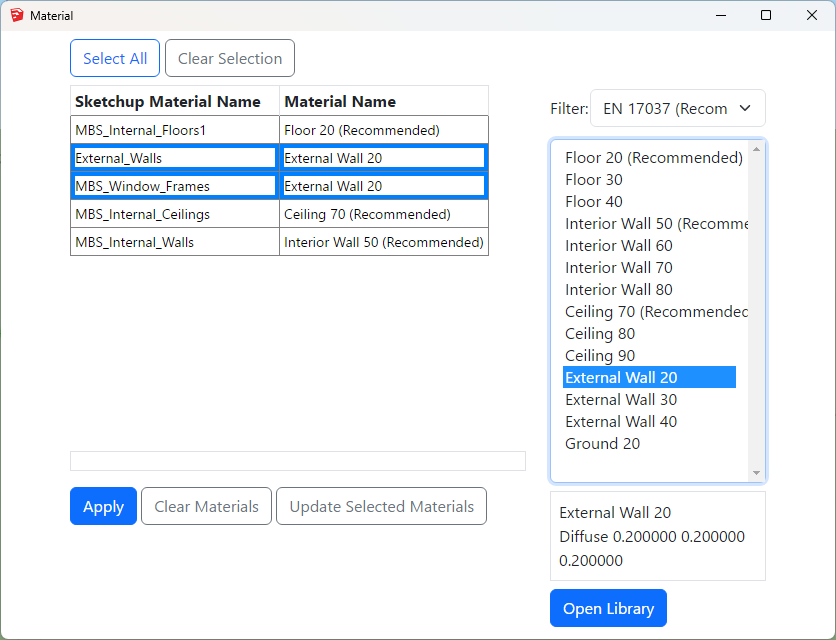
- Select one or more rows from the Sketchup Material Name – Material Name list on the left hand side for which you want to update the material.
- Select the desired material from the Material list on the right hand side.
- Then click on Update Selected Materials button.
- Repeat steps 1 – 3 as necessary.
- Press Apply and Close the dialog.
- Updating the materials this way doesn’t require model reconversion
Adding New Material
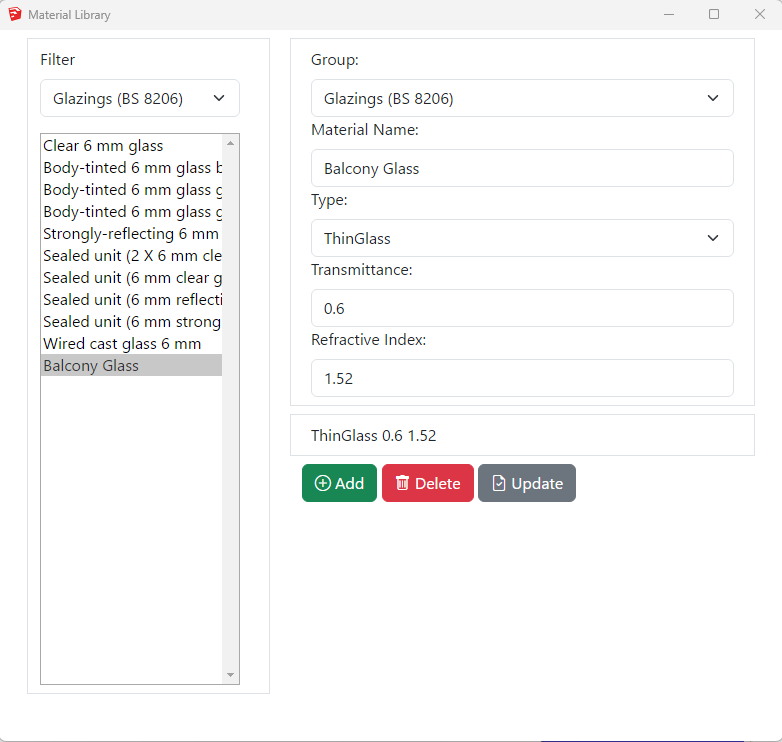
Adding New Material to the library
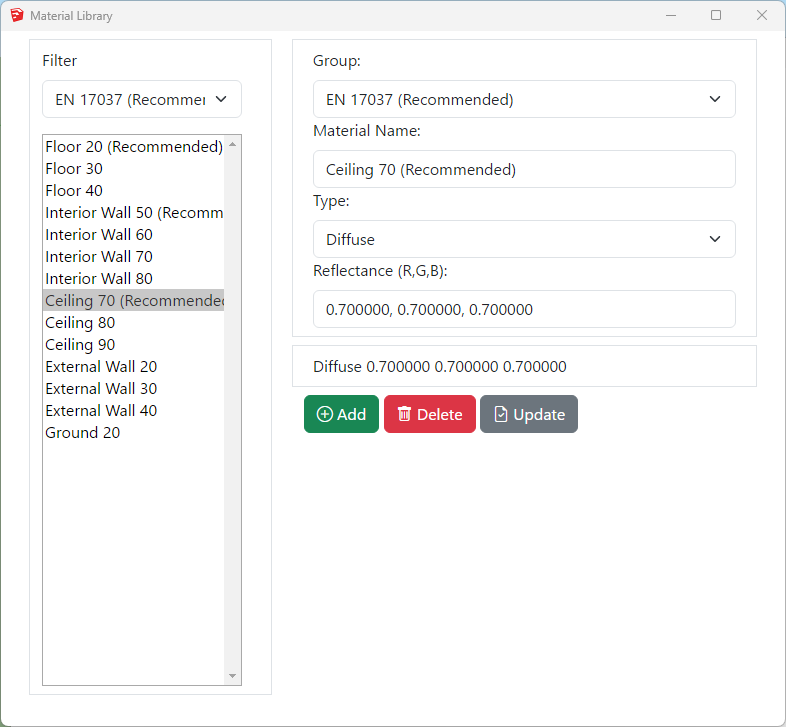
- Click on the Open Library button
- Select a existing Group or Type a new group name for the material on the Group combo box.
- Type a unique name on the material name text box.
- Select a Material Type from the Type combo box. See below for detail on types.
- Assign material properties on the relevant text boxes.
- Press Add and Close this dialogue.
- Remember to Press Apply on the Material dialogue.
- Diffuse surface reflects light uniformly over the entire reflecting hemisphere. A Lambertian (or diffuse) surface appears equally bright from all viewing directions.
The reflectance parameter represents the fraction of the incident energy that is reflected at a surface. The parameter has three components which range from 0 to 1. - Mirror (specular reflection) surface only reflects light in one specific direction.
- ThinGlass is a special case of dielectric, infinitely thin and therefore does not change the transmitted ray direction. It is modelled as a single surface. The default refractive index is 1.52.
Transmittance is the ratio of the total transmitted light to the incident light which includes multiple inter-reflections in a layer of glass.
The parameter is a single value from 0 to 1 – Reflectance field is disabled as it is a function of angle, refractive index of the material and transmissivity.
Transmissivity applies to a single pass of light through a layer of glass and excludes multiple interreflections within the medium.
ThinGlass is translated to Radiance glass material. Transmittance value is converted to transmissivity for the Radiance rad file. - TransTree is a mix of Diffuse Reflection (representing leaves) and Specular Transmission(the gaps). See How to assign the Materials for Trees? for more details.
- Translucent material is a mix of diffuse reflectance/transmittance and perfect/glossy specular reflectance and transmittance. It describes diffuse and glossy specular reflection and transmission through the surface.
Translucent parameters are well described in this link: http://www.schorsch.com/en/software/rayfront/manual/transdef.html - BSDFRadiance material, only valid on Radiance method, is to define material for complex glazing system.
The input is an xml file containing BSDF matrix data. This file can be generated using WINDOW 6.0 BERKELEY LAB application.
Please follow instruction on BSDF Files for Radiance Renderings page.
How to assign the Material for Trees?
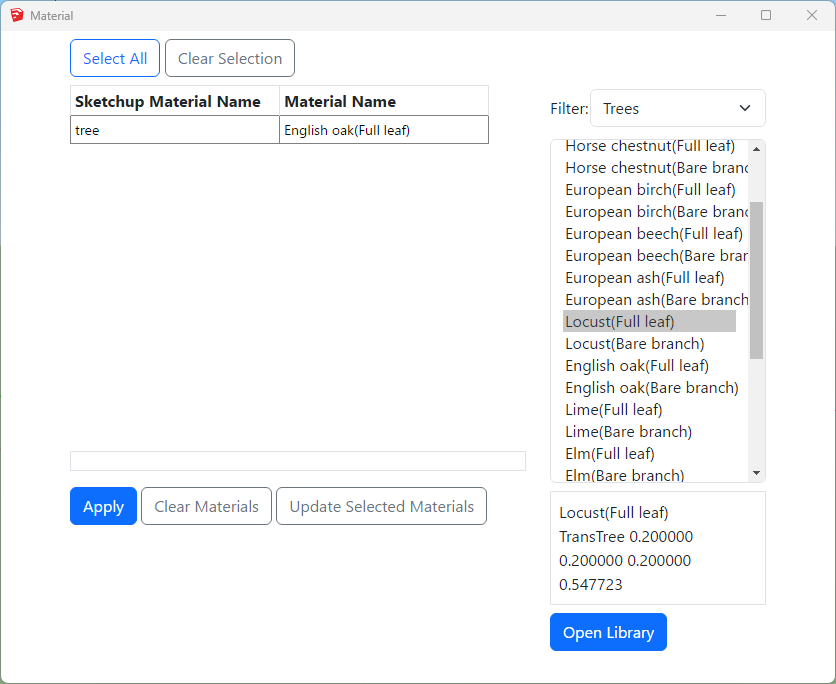
Assign Tree Material from pre-defined BRE trees
TransTree is a mix of Diffuse Reflection (representing leaves) and Specular Transmission (the gaps). This material is suitable for simulating trees on BRE (ADF, VSC, APSH, Amenity) or Daylight Factor calculations. The Reflectance value on ADF, VSC, APSH, Amenity calculations only reflects in terms of the colour as no reflected light is accounted for. The Transmittance value is the overall transparency of tree crown as the ray enters and exists the tree volume. Follow the below steps to assign tree material to a layer:
- Put the tree objects with the same transparency to a layer.
- Then Open the Materials dialogue and assign one of the predefined BRE tree materials.
- The trees mentioned BRE Site Layout for Daylight & Sunlight Appendix H Table H1 are included in the material library.
*For SDA calculations please refer to https://www.mbs-software-uk.com/knowledge/sda-calculation-with-trees/
Creating a custom Tree material
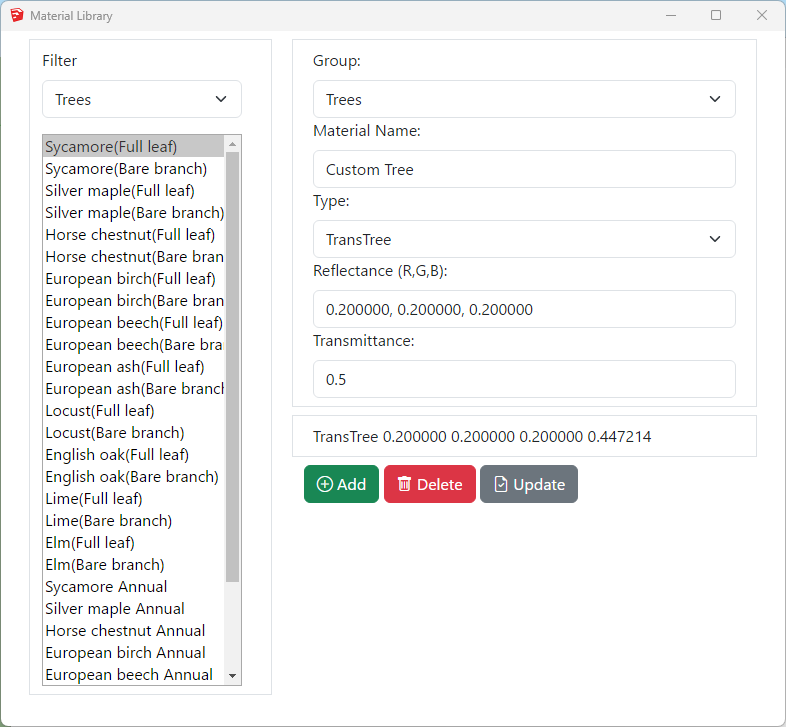
- Open Material dialog then Press Open Library button.
- Create a new TransTree type material.
- The reflectance values are used during DF calculation only. It is used for the colour of the tree in case of VSC, APSH, ADF and Amenity calculations.
- The transmittance is converted automatically to consider the overall transparency of the tree crown as the ray enters and exits the tree volume.
- For example 50% overall transparency should be input as 0.5 which will then be converted to 0.707 (√0.5) to adjust for the ray entering and leaving the tree crown. This can also be seen on material preview area.
How to assign the Materials for Balconies?
- Balconies are supported for all calculations including Ray-traced based (Daylight Factor and Climate) and BRE (VSC, APSH and ADF).
- Put the balcony objects with the same transparency to a layer.
- Objects with single face should be used.
- Using objects with multiple faces may result in the transparency being applied multiple times.
- If the overall transparency of the balcony modelled as solid is 0.60,
- Then the ThinGlass transparency should be √0.60 i.e. 0.775
- Open Material dialogue then Press Open Library button
- Create a new ThinGlass type material
- The normal transmittance value should be in put as unit value e.g. 0.6 for 60%
- Refractive index of 1.52 is define as default.
- Press Add and Close this dialog.
- Remember to Press Apply on the Material dialogue.
- Then Assign the material to the layer with balcony objects on the Materials tab.
Refer to Updating Material For Layer topic for details.